An airline application asks for your turbine PIC time. You open LogTen Pro, find your turbine total, and realize you still need to figure out how much of it you flew as PIC.
That’s where a little setup pays off. Once your aircraft types are configured and your PIC time is logged accurately, LogTen Pro can do that math for you. You can pull the same numbers when you update an application, then show a logbook reviewer which flights make up those totals.
Start with four numbers that often come up in airline applications and interviews: Total Time, PIC Time, Turbine Time, and Turbine PIC Time. These steps use the iPhone layout.
1. Check how LogTen Pro calculates Total Time
Open Analyze → All Entries to see your logbook totals. LogTen Pro adds up the Total Time recorded on your entries. It can also calculate the time for an individual flight from the fields you enter, such as Out/In for block time or Hobbs Out/Hobbs In if that’s how you record the flight. You can enter Total Time manually when you’re transferring a flight from another record. LogTen’s Total Time settings
Go to Menu → Settings → Time Calculations and check that the calculation matches how you record your flying. Then open a few recent flights and compare the displayed time with your source records. If you’ve imported schedules or combined old logbooks, check that the same flight appears only once.
Before copying the total into an application, read the wording of the question. If the airline asks for aircraft flight time and has a separate box for simulator time, use the corresponding totals. Properly labeling simulator entries makes that breakdown easier to pull. LogTen’s simulator logging guide
2. Make PIC time easy to see and check
Open a flight and look for PIC in the Time section. If the field is hidden, tap the three-dot menu and go to Configure Fields → Time → Configure Section, then enable PIC. You only need to change the layout on one flight for the field to show on your other entries. LogTen’s field configuration guide
When logging a flight, enter the amount that qualifies as pilot-in-command time in the PIC field. If you use Auto-Fill, check what LogTen is filling from Total Time. This is worth a look when you switch jobs, upgrade, or fly in more than one role. A setting that saves time on one flight can put hours in the wrong column on the next. LogTen’s Auto-Fill settings
When you’re filling out an application, follow that airline’s definition of PIC. If it asks specifically for time as captain or aircraft commander, check which of your logged PIC hours meet that definition before using the full total.
3. Set the engine type for your turbine aircraft
LogTen Pro uses the Aircraft Type on each flight to work out which hours belong in your turbine total. If the engine type is missing or incorrect, your Total Time can look right while your Turbine Time is off.
- Go to Logbook → Aircraft Types and open the type you want to review.
- Check Engine Type and choose the classification that matches the aircraft. A King Air, for example, belongs under Turbo-prop.
- While you’re there, check Category and Class. Those fields affect other breakdowns, including multi-engine time.
- Open a few flights in that aircraft and confirm the entries are linked to the correct type. This is especially useful after an import. LogTen’s Aircraft Types guide
Then go back to Analyze → All Entries and look for Turbine. LogTen’s turbine summary includes jet, turbofan, turboprop, turboshaft, and aircraft classified as turbine. If the application asks for jet time, use the breakdown that matches that request. How LogTen calculates turbine time
4. Track Turbine PIC with a Smart Group
For most pilots, this is the setup I’d use. A Smart Group filters the flights you’ve already logged and displays the time you want to see. The Turbine PIC group finds flights in turbine aircraft and adds up the PIC hours recorded on those flights. Your historical entries are included if the underlying PIC and aircraft type data are correct. LogTen’s downloadable Turbine PIC Smart Group
- Open the download guide on a device with LogTen installed and select Turbine PIC.
- In LogTen, open Analyze and find the group under Smart Groups.
- Open it and check the PIC figure. You can tap the flight count or total to see which entries are included.
- Spot-check a turbine flight you logged as PIC and one you logged as SIC. The PIC flight should contribute its logged PIC time. The SIC flight should contribute zero to the PIC figure. LogTen’s Analyze guide
Say you logged 2.0 hours of jet SIC, 1.5 hours of turboprop PIC, and 1.0 hour of piston PIC. Here’s how those same three flights break down:
| What the application asks for | Hours |
|---|---|
| Total Time | 4.5 |
| PIC Time | 2.5 |
| Turbine Time | 3.5 |
| Turbine PIC Time | 1.5 |
If you need a more specific breakdown, use the + in the Smart Groups section of Analyze to create one. Choose the aircraft or engine criteria, set the date range if needed, and select PIC Time as the displayed value. Give it a name that tells you exactly what it counts, like Jet PIC or Turboprop PIC — Last 12 Months. LogTen’s Smart Groups guide
When a custom Turbine PIC field makes sense
A custom time field is handy when you want a Turbine PIC column on individual entries or in a printed report. Open a flight and tap … → Configure Fields → Time → Configure Section. Enable an unused custom time field and name it Turbine PIC or TPIC. Enter the qualifying time on each applicable flight. Older entries will need to be filled in if you want them reflected in that column.
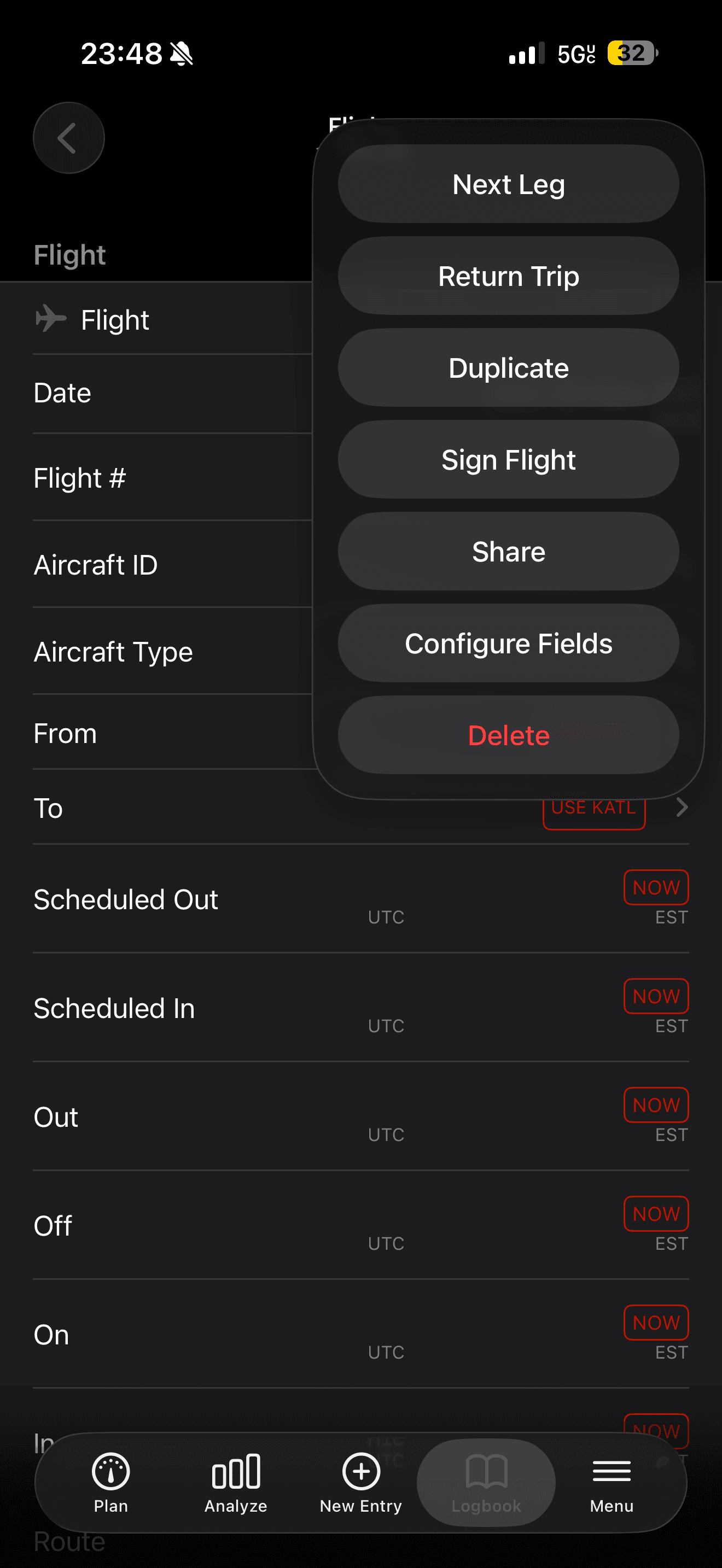
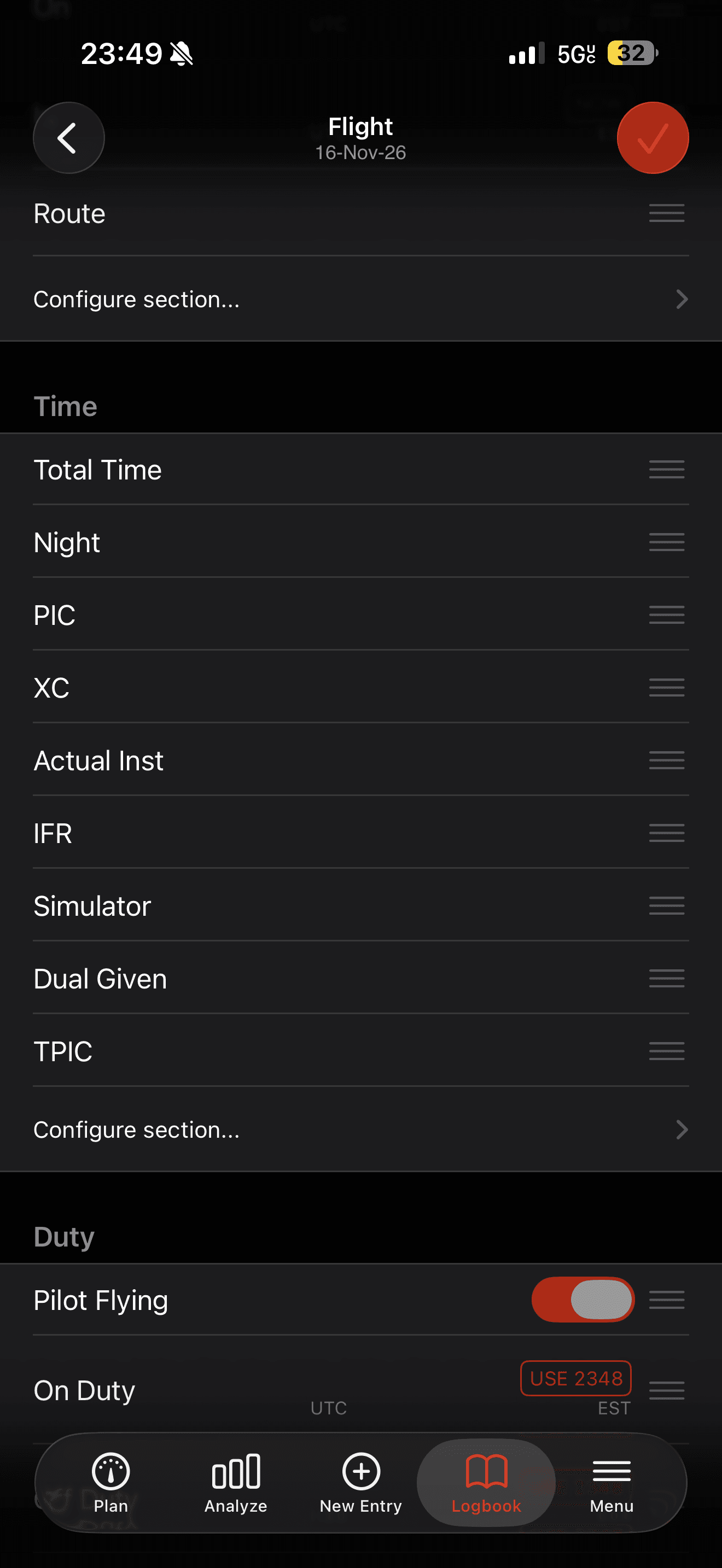
Keep using the standard PIC field for your logged PIC time. The custom field gives you a separate column for the turbine portion. If you want to print it, make the field visible and preview a Dynamic Logbook report, which uses the fields you’ve chosen to display. LogTen’s field configuration guide · LogTen’s Dynamic Reports guide
5. Compare your application with the report you’ll bring
On iPhone, go to Logbook → Reports. The Experience reports are a good starting point for a flight-time summary. Choose a logbook report for the individual entries, or use the format the airline requests. In Configure Report, check the date range, entry types, and any group filter. Generate the report and save it as a PDF so you can review the exact copy you’ll share or print. LogTen’s report guide · Saving and printing reports
If your current totals differ from the application you submitted two months ago, run a report through the original cutoff date. Maybe you’ve simply flown another 80 hours since you applied. If the totals still differ at the same cutoff, trace the difference back to the entries so you can explain it clearly. Do this for every total the airline asks for, including categories beyond the four covered here.
If you’re getting your records together for an interview, the free QuickLog Aviation checklist walks through checking your totals, explaining discrepancies, and organizing your logbooks for review. Pilot Logbook Interview Checklist